


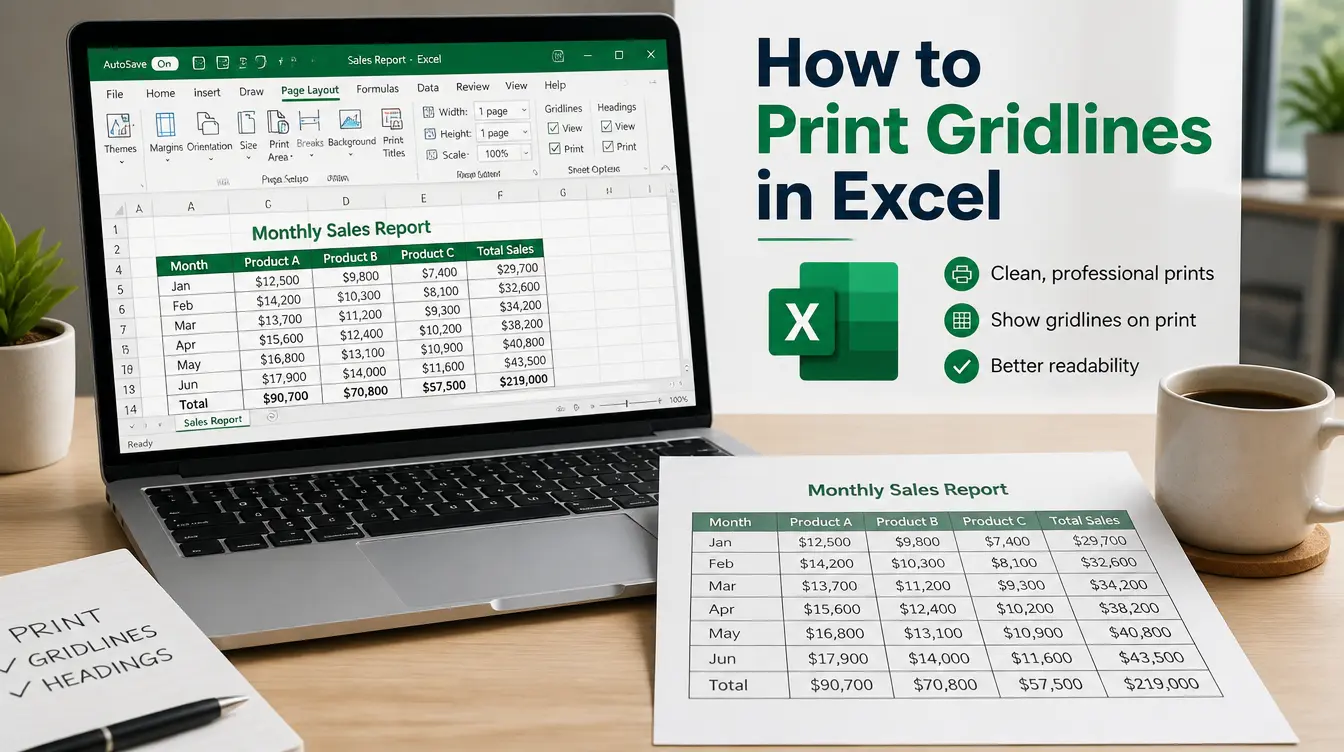
How to Print Gridlines in Excel: The Ultimate Step-by-Step Guide

One of the most frustrating things about Microsoft Excel is pressing print, grabbing your paper, and realizing your data is floating on a blank white page without any of the lines separating the columns. By default, Excel does not print the faint gray gridlines you see on your screen. If you want to know how to print gridlines in Excel, you aren’t alone—it’s a massive pain point for thousands of office workers.
If you are wondering exactly how to print gridlines in Excel, the short answer is: Go to the “Page Layout” tab on the top ribbon, locate the “Sheet Options” group, and under the “Gridlines” section, check the box labeled “Print.” Then press Ctrl + P to print your sheet with the gridlines clearly visible.
In this comprehensive guide, we will walk through the exact steps to enable gridlines for printing. We will also explain how to print gridlines in Excel when dealing with completely empty cells, and troubleshoot exactly why the print gridline option might be grayed out for you. (If you’re using a Mac for your office work, check out our guide on how to print double-sided on Mac while you’re optimizing your print workflow).
1. The Easiest Way: How to Print Gridlines in Excel
According to Microsoft Office Support, the absolute fastest way to turn on printed gridlines is through the Page Layout tab. When you learn how to print gridlines in Excel using this method, you’ll never have to manually draw borders again. Follow these simple steps.
Step-by-step instructions:
- Open your Excel workbook and select the worksheet (or multiple worksheets) you want to print.
- Click on the Page Layout tab located in the top ribbon menu.
- Look for the Sheet Options group on the right side of the ribbon.
- Under the Gridlines section, check the box labeled Print.
- Press Ctrl + P (or go to File > Print) to open the Print Preview. You should now see the gridlines bordering your data.
- Click the Print button.
2. How to Print Gridlines in Excel on Empty Cells
By default, Excel only prints gridlines around cells that actually contain data. If your spreadsheet is a blank template or you simply want extra blank gridlines at the bottom of your sheet for people to write on, you have to force Excel to print them.
Steps to print blank gridlines:
- Click and drag to highlight the specific empty cells where you want the gridlines to appear.
- Go to the Page Layout tab.
- Click on Print Area and select Set Print Area.
- Make sure the Print box under Gridlines (in Sheet Options) is checked.
- Go to File > Print. The blank cells you highlighted will now print with full gridlines.
3. Why Printing Gridlines is Important for Data Analysis
Learning how to print gridlines in Excel isn’t just about making your documents look pretty; it’s a critical part of physical data analysis. When you hand a colleague a printed spreadsheet that lacks gridlines, tracking data across a wide row becomes nearly impossible. Your eyes can easily slip from row 12 to row 13 without you noticing, leading to disastrous misinterpretations of data.
By ensuring you always print gridlines in Excel, you create a natural guide for the reader’s eye, significantly reducing human error during meetings and presentations. It brings the clarity of the digital monitor straight to the physical page.
Frequently Asked Questions (FAQ)
Why is the “Print Gridlines” checkbox grayed out?
If the “Print” checkbox under the Gridlines section is grayed out (dimmed), it is because you currently have an image, a chart, or another object selected on your spreadsheet. To fix this, simply click any blank cell on your spreadsheet to deselect the object, and the checkbox will become clickable again.
I checked the print box, but gridlines still aren’t printing. How do I fix it?
If your gridlines still aren’t showing up, your printer might be set to “Draft quality” mode, which disables gridlines to save ink. Go to the Page Layout tab, click the tiny arrow in the bottom right corner of the Page Setup group to open the dialog box, go to the Sheet tab, and uncheck Draft quality.
Is there a difference between Gridlines and Borders?
Yes. Gridlines are the faint gray lines that appear across the entire Excel sheet by default, while Borders are specific lines you manually draw around cells. Borders override gridlines and can be customized with different colors and thicknesses. If you want permanent, dark lines, you should apply Cell Borders rather than printing gridlines.
