


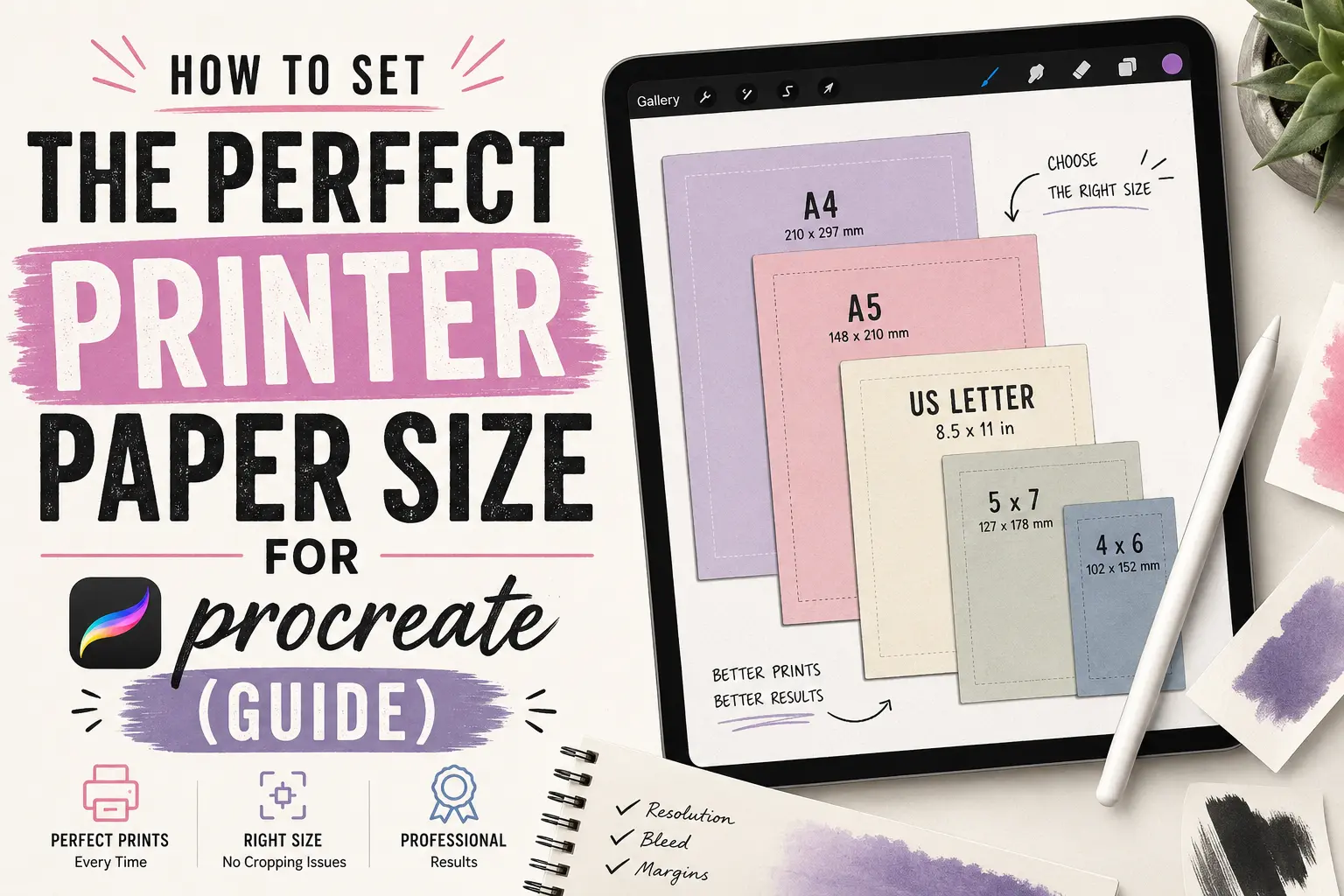
How to Set the Perfect Printer Paper Size for Procreate (Guide)
Nothing is more frustrating for a digital artist than spending hours on a masterpiece, only to hit “Print” and see a blurry, pixelated mess on the page. If you are struggling to figure out the right printer paper size for procreate, you are not alone.
Because Procreate operates in pixels but printers operate in physical inches, bridging the gap requires setting up your canvas correctly from the very start.
Key Takeaways (TL;DR)
- To print a standard US Letter (8.5 x 11 inches) at high quality, your Procreate canvas must be 2550 x 3300 pixels.
- Always set your canvas DPI to 300 before you start drawing.
- You can input physical dimensions (Inches or Millimeters) directly in Procreate’s “New Canvas” menu so you don’t have to do the math.
Table of Contents
- Understanding the Printer Paper Size for Procreate
- Step-by-Step: How to Set Up Your Canvas for Print
- Common Printer Paper Sizes for Digital Art (Cheat Sheet)
- How to Export Your Art for the Best Print Quality
- Frequently Asked Questions (FAQ)
Understanding the Printer Paper Size for Procreate
When you look at a piece of printer paper, you measure it in inches or millimeters (e.g., a standard US Letter is 8.5 x 11 inches). When you look at an iPad screen, you measure in pixels. Understanding how to connect these two measurements is the secret to finding the perfect printer paper size for procreate.
To connect the two, we use DPI (Dots Per Inch). For high-quality printing, the industry standard is 300 DPI. This means for every inch of physical paper, your Procreate canvas needs 300 pixels of data.
What size printer paper is 8.5 x 11 in pixels?
To print a standard 8.5 x 11-inch letter paper at high quality (300 DPI), your canvas must be exactly 2550 x 3300 pixels.
*Calculation: 8.5 inches × 300 = 2550 pixels. 11 inches × 300 = 3300 pixels.
Step-by-Step: How to Set Up Your Canvas for Print
If you know you want to print your artwork, the best practice is to set your dimensions before you draw your first line. According to the official Procreate Handbook, creating a custom canvas gives you full control over the final output resolution.
Here is exactly how to set your printer paper size for procreate:
- Open the Procreate app and tap the “+” (plus) icon in the top right corner of the Gallery.
- Tap the New Canvas icon (the small folder with a plus sign).
- At the bottom of the dimension keypad, switch the measurement from Pixels to Inches (or Millimeters if you are outside the US).
- Enter your desired physical width and height (e.g., 8.5 for width, 11 for height).
- In the DPI field, enter 300.
- Tap Create.
(Note: These same physical-to-pixel principles apply if you are looking for the correct printer paper size for Canva or other digital design tools.)
Common Printer Paper Sizes for Digital Art (Cheat Sheet)
If you prefer to input your dimensions in pixels directly, use this quick reference chart. All dimensions below are calculated for high-quality 300 DPI printing.
| Paper Type | Physical Size (Inches) | Physical Size (mm) | Procreate Canvas Size (Pixels) |
|---|---|---|---|
| US Letter | 8.5″ × 11″ | 216 × 279 mm | 2550 × 3300 px |
| Legal | 8.5″ × 14″ | 216 × 356 mm | 2550 × 4200 px |
| Tabloid | 11″ × 17″ | 279 × 432 mm | 3300 × 5100 px |
| A4 | 8.27″ × 11.69″ | 210 × 297 mm | 2480 × 3508 px |
| A3 | 11.69″ × 16.54″ | 297 × 420 mm | 3508 × 4961 px |
| 5×7 Photo | 5″ × 7″ | 127 × 178 mm | 1500 × 2100 px |
| 8×10 Frame | 8″ × 10″ | 203 × 254 mm | 2400 × 3000 px |
How to Export Your Art for the Best Print Quality
Having the right canvas size is only half the battle; how you save the file matters just as much.
When you are ready to print:
- Tap the Wrench icon (Actions).
- Tap Share.
- Select PDF or TIFF.
While JPEGs and PNGs are great for Instagram, PDF and TIFF formats preserve the most color and sizing data, ensuring your home printer or professional print shop reads the exact physical dimensions you set.
Frequently Asked Questions (FAQ)
Can I change my canvas size after I start drawing?
Yes, but it is risky. You can go to Actions > Canvas > Crop and Resize. However, if you enlarge a canvas that was drawn at a low resolution, your artwork will become pixelated. It is always better to start large and scale down than to start small and scale up.
Why is my Procreate print still blurry if I used 300 DPI?
If your canvas size and DPI are correct, the issue is likely your printer settings or paper quality. Ensure your printer driver is set to “High Quality” or “Photo” mode, and make sure you are printing on coated inkjet paper or photo paper rather than cheap copy paper.
Final Thoughts
Setting the correct printer paper size for procreate shouldn’t feel like a math test. By remembering to switch your canvas dimensions to inches and keeping your DPI at 300, you guarantee that your digital art will look just as vibrant on paper as it does on your iPad.
Want to get the absolute best results for your physical prints? Check out our latest guides on Print Minute for in-depth reviews on the best art printers and paper types for digital artists.
