


The Ultimate Guide to Printing Canva Designs (2026 Edition)
Suddenly, your beautiful design is ruined. The vibrant colors look washed out and muddy. Crucial text at the edges gets chopped off by the printer. A massive, ugly white border surrounds your full-bleed background. This is the great technical divide of graphic design: moving a digital asset onto physical paper.
If you are struggling with how to print Canva designs, you are not alone. Printing is a highly technical process governed by color profiles, DPI (dots per inch), bleed margins, and hardware limitations. In this ultimate guide, we are going to bridge that gap. We will teach you exactly how to export your Canva files for professional printing, how to configure your at-home printer, and how to avoid the most common printing disasters.
The Golden Rule of Printing: Never, ever print a JPG or PNG file for a document that contains text. Always export your Canva design as a PDF Print file to preserve vector text crispness and high-resolution imagery.
Step 1: Understanding Color Profiles (RGB vs. CMYK)
The most common complaint from new designers is, “Why do the colors look so dull when I print?” The answer lies in color profiles.
Your computer monitor, phone screen, and tablet display colors using RGB (Red, Green, Blue). Screens emit light, meaning they can produce incredibly bright, neon, and vibrant colors. Printers, however, do not emit light. They lay down physical ink on paper using CMYK (Cyan, Magenta, Yellow, Key/Black). The CMYK color gamut is physically much smaller than the RGB gamut.
If you design a neon pink flyer in Canva (RGB) and send it to your printer (CMYK), the printer simply cannot reproduce that neon color. It will automatically convert it to the closest printable color, which is usually a muddy, darker pink.
How to Fix Color Issues in Canva
If you have Canva Pro, you have a massive advantage. When you go to export your file, follow these steps:
- Click Share in the top right corner.
- Click Download.
- Change the File Type to PDF Print.
- Under the Color Profile dropdown, change it from RGB (best for digital use) to CMYK (best for professional printing).
If you are using the free version of Canva, you will be locked into the RGB profile. Your local printer will convert the file to CMYK automatically, but you should expect a slight shift in vibrancy. Always run a single test print before printing 500 copies of an invitation!
Step 2: Mastering Margins and Bleed
The second most common printing disaster is having important text chopped off the edge of the page, or attempting to print a background color all the way to the edge, only to be left with an ugly white border.
To fix this, you need to understand two critical layout tools within Canva: Margins and Print Bleed.
The Safe Margin
Printers are physical machines; paper shifts slightly as it is pulled through the rollers. Because of this, you should never place important text or logos right on the very edge of your design. Go to File > View Settings > Show Margins. Canva will display a dotted line around the inside of your design. Keep all crucial information inside this box to ensure it never gets cut off.
The Print Bleed
If you want a background color or an image to go all the way to the absolute edge of the paper without a white border, you must use a “Bleed.” Go to File > View Settings > Show Print Bleed. This expands the canvas slightly past the final cut size. You must drag your background images out to this new, wider boundary.
When you export the PDF Print file, make sure you check the box that says “Crop marks and bleed.” This tells the commercial printer exactly where to slice the paper so the ink goes perfectly to the edge.
Struggling with white borders on your home printer? Read our dedicated hardware guide: How to Print From Canva Without a White Border.
Step 3: Exporting the Perfect High-Resolution File
Exporting the wrong file format is a guaranteed way to ruin a print job. Here is exactly what you should use based on what you are printing:
- PDF Print (The Gold Standard): Use this for 99% of all print jobs (flyers, invitations, business cards, posters). It embeds fonts as vector graphics, meaning text will print perfectly crisp no matter how far you zoom in. It also retains a 300 DPI resolution for images.
- PNG: Only use PNG if you are printing a design that requires a transparent background (e.g., printing a logo onto clear sticker paper or a t-shirt transfer).
- JPG: Avoid JPG for printing text. JPG uses lossy compression, which can cause text to look fuzzy or pixelated. Only use JPG if a specific photo-printing kiosk (like Walgreens or CVS) explicitly requires it for photo paper.
Step 4: At-Home Printing vs. Professional Print Shops
Once you have exported your high-quality PDF Print file, you have to decide where to print it. The method you choose drastically changes how you handle the file.
Printing at Home
If you are printing at home on a standard inkjet or laser printer, the most important step happens in your operating system’s print dialog box. When you open your PDF in Adobe Acrobat or Chrome and hit Print, pay very close attention to the Scale or Page Sizing settings.
By default, most computers are set to “Fit to Page” or “Shrink to Fit.” This will automatically shrink your 5×7 invitation to ensure it fits comfortably within the printer’s unprintable margins. You must change this setting to “Actual Size” or “Scale: 100%”. If you do not, your design will print smaller than you intended, ruining any templates or perforated paper you might be using.
Trying to print complex formats at home? Check out our deep dives on How to Print Canva Business Cards at Home and The Secret to Printing From Canva Front and Back.
Using a Local Print Shop or Online Service
If you are sending your file to a professional shop (like Staples, FedEx, or an online service like VistaPrint or Moo), you must follow their specific upload guidelines. In almost all cases, they will request a PDF Print file with Crop Marks and Bleed enabled, set to the CMYK color profile.
Do not try to fit multiple designs on a single page for them (e.g., placing two 5×7 invitations on an 8.5×11 canvas). Send them the exact 5×7 file with bleeds, and their prepress software will automatically arrange them on large sheets of paper for maximum efficiency.
Frequently Asked Questions (FAQ)
Why is my text blurry when I print from Canva?
You likely exported the design as a JPG or standard PNG. JPGs compress data, which degrades sharp lines like text. Always export as a PDF Print. PDFs treat text as vector data, meaning it will print with absolute mathematical precision and razor-sharp edges.
Can I print directly from the Canva app?
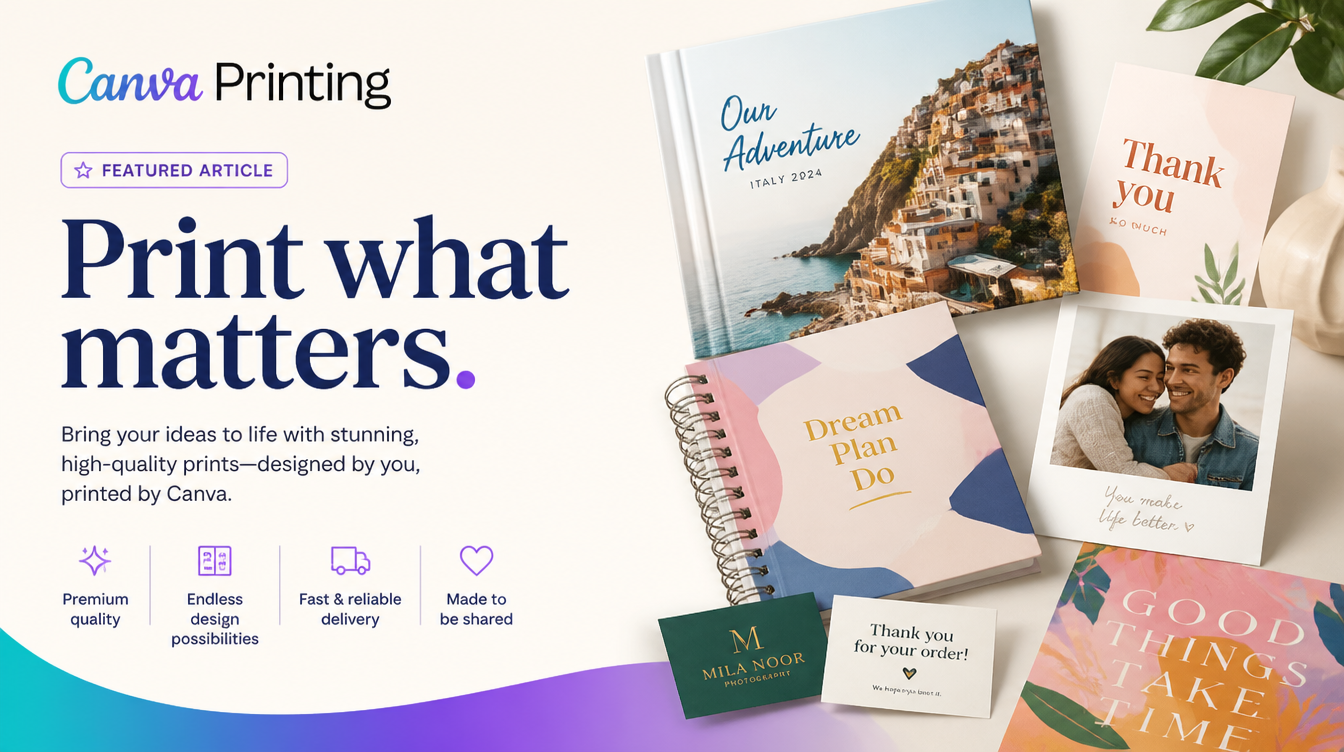
Yes, Canva offers a built-in “Print Your Design” service where they will professionally print and ship the items to you. While incredibly convenient, their pricing is often higher than local print shops, and you have less control over the exact paper stock. However, for beginners, it guarantees the bleeds and margins are handled correctly.
How do I know if my images are high enough resolution to print?
A good rule of thumb is that print images need to be 300 DPI (Dots Per Inch). If you stretch a small image too far in Canva, it will become pixelated. A simple test: zoom into your Canva canvas to 200%. If the image looks blurry or blocky on your screen at 200%, it will definitely look blurry when physically printed.
