


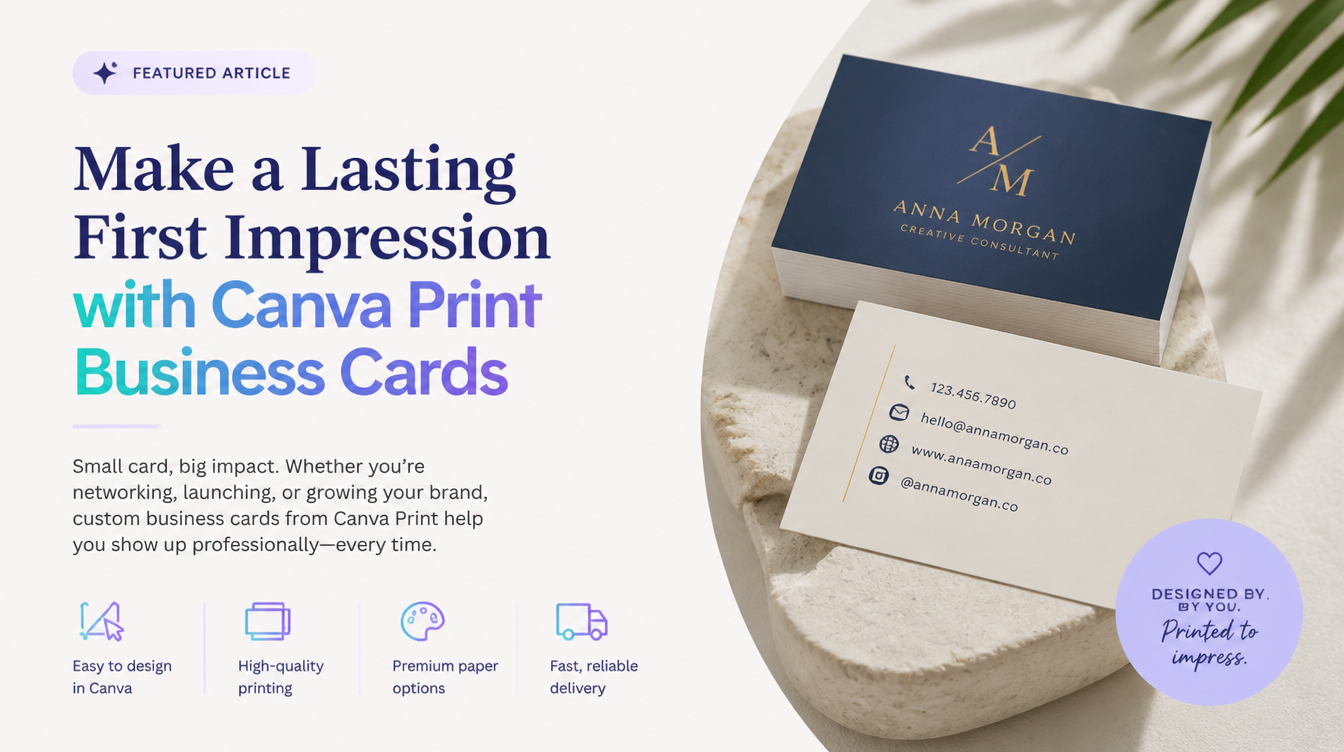
Avery templates, heavy cardstock, and the correct printer alignment settings to launch your small business today.”>
How to Print Canva Business Cards at Home Like a Pro
Starting a new business is incredibly exciting, but the startup costs can quickly spiral out of control. When you are just launching, you might not want to spend $50 ordering 500 premium business cards from a massive commercial print shop—especially when your phone number or title might change next month.
The solution? Printing small batches yourself. Learning exactly how to print Canva business cards at home gives you the ultimate flexibility to test different designs, print on demand, and save serious cash.
However, it isn’t as simple as hitting “Print” and hoping for the best. To make DIY business cards look like they came from a professional print house, you need to understand paper weight constraints, perforated template alignment (like Avery sheets), and the correct PDF export settings. In this guide, we will walk you through the entire process step-by-step.

The Core Advantage: Printing at home allows you to iterate instantly. You can print just 10 cards for a networking event tonight, test a new logo, or create highly personalized cards for a specific VIP client.
Step 1: Sourcing the Right Paper (Cardstock)
The biggest giveaway of an amateur, DIY business card is flimsy paper. If your card bends under its own weight, potential clients will subconsciously associate that flimsiness with your business. You cannot print business cards on standard 20lb copy paper.
You need to buy perforated business card cardstock. The industry standard is Avery (e.g., Avery 5371, 8859, or 5871). These sheets are pre-scored and usually feature a “10-up” layout, meaning you get 10 standard 3.5″ x 2″ business cards per 8.5″ x 11″ sheet. You can simply snap them apart after printing, avoiding the need for a guillotine paper cutter.
A Warning About Paper Weight
Cardstock is measured in pounds (lb) or grams per square meter (gsm). A standard commercial business card is usually 100lb to 110lb cover stock. However, many cheap home inkjet printers cannot pull paper that thick through their rollers—it will jam constantly.
Check your printer’s manual for its maximum paper weight. Most home printers can safely handle 65lb to 80lb cardstock. While not as thick as a premium commercial card, 80lb is perfectly acceptable for DIY networking.
Step 2: Designing and Exporting in Canva
The trickiest part of this process is taking a single business card design in Canva and aligning it perfectly onto an Avery 10-up template so the printer doesn’t misalign the cut lines.
Method A: Using Avery’s Free Software (Recommended)
This is the most foolproof method. Do not try to manually arrange 10 cards on an 8.5×11 canvas in Canva. Instead, export the single card from Canva and let Avery handle the layout.
- Design your standard 3.5″ x 2″ business card in Canva.
- If your design has a background color that goes to the edge, turn on Show Print Bleed and stretch the background into the bleed zone.
- Click Share > Download.
- Select PNG or JPG (High Quality). Download the image to your computer.
- Go to the free Avery Design & Print Online website.
- Enter your Avery product number (e.g., 5371).
- Upload your Canva PNG/JPG into their template. Avery will automatically copy it to all 10 slots and align it perfectly for their perforated lines.
- Save and download the PDF provided by Avery.
Method B: Creating a 10-Up Template in Canva
If you prefer to stay entirely within Canva, you must create a custom canvas.
- Create a new design in Canva with custom dimensions: 8.5 x 11 inches.
- Manually place guidelines (or find an Avery template overlay image) to map out where the 10 cards sit on the page.
- Copy and paste your individual business card design 10 times, aligning them perfectly to the grid.
- Export the final 8.5×11 page as a PDF Print.
Need more help understanding Canva’s print bleed and margins? Read our comprehensive tutorial on The Ultimate Guide to Printing Canva Designs.
Step 3: The Crucial Printer Settings
This is where 90% of people ruin their expensive perforated cardstock.
When you open your final 8.5×11 PDF to print, your computer will likely try to be “helpful” by automatically shrinking the page to fit within the printer’s safe margins (a setting usually called “Fit to Page” or “Scale to Fit”).
If your computer shrinks the PDF by even 2%, the design will no longer line up with the physical perforations on the Avery paper. Your cards will print off-center, with the text crossing over the cut lines.
You MUST go into your printer preferences and set Page Sizing / Scale to “Actual Size” or “100%”.
Secondly, tell your printer that you are feeding it thick paper. Change the “Media Type” or “Paper Type” setting in the print dialog from “Plain Paper” to “Cardstock” or “Heavy Paper.” This slows down the printer’s rollers and applies more heat (for laser printers) or more ink (for inkjets) to ensure a high-quality bond.
Testing and Snapping
Before you waste a sheet of $2 Avery cardstock, run a test print on standard, cheap copy paper. Hold the printed copy paper up to the light over an unprinted sheet of Avery cardstock. You should be able to see through the paper and verify that the design perfectly aligns with the perforations.
Once you verify the alignment, load the cardstock, hit print, and carefully bend back and forth along the perforations to snap your new, professional DIY business cards free!
Want to print a double-sided business card? That requires a special alignment technique. Learn how in our guide: The Secret to Printing From Canva Front and Back.
Frequently Asked Questions (FAQ)
Why is the ink smearing on my business cards?
You are likely using glossy cardstock with a laser printer, or laser cardstock with an inkjet printer. Inkjet ink takes time to dry and will smear on glossy laser paper. Ensure the paper you bought explicitly states it is compatible with your specific type of printer (Inkjet vs. Laser).
How do I print double-sided Avery business cards?
You must buy specific “Two-Sided” printable cardstock (like Avery 5871). You will export a 2-page PDF (Page 1 is the front 10 cards, Page 2 is the back 10 cards). You must tell your printer to “Print on Both Sides” and flip on the “Long Edge” to ensure the back isn’t printed upside down.
Are DIY business cards tacky?
Not if executed correctly! If you use a high-quality Canva template, print on heavy 80lb matte cardstock, and ensure your alignment is perfect, 99% of people will assume they were professionally manufactured.
